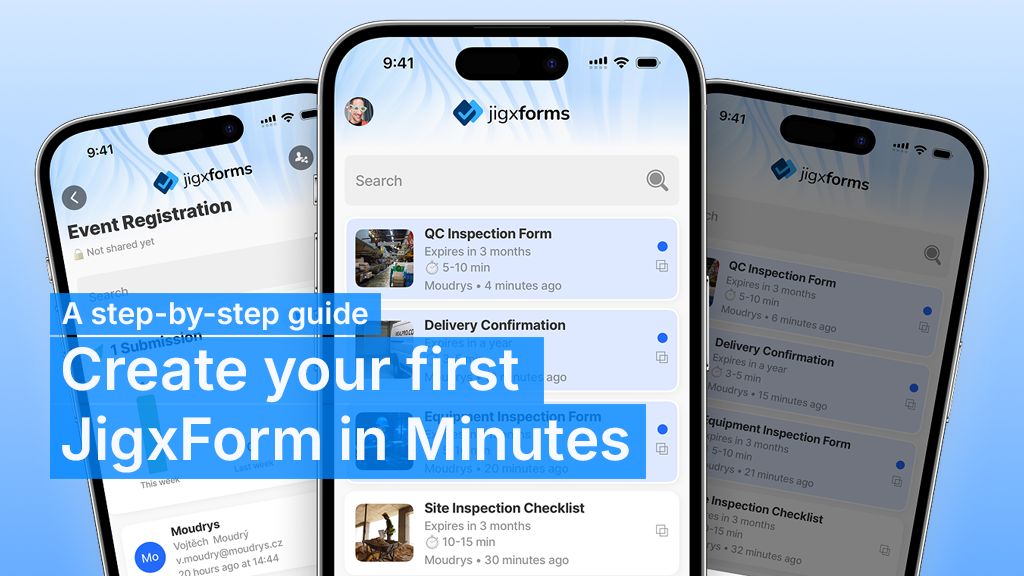
If your field team is still using paper forms (or clunky digital ones), you can replace them in minutes with JigxForms.
This guide will show you exactly how to:
- Create your first form
- Test it on mobile
- Start collecting real data from the field
Need access to JigxForms? Click here to request to join the beta.
1. Create your first form
You can do this in the mobile app or the browser, both work the same.
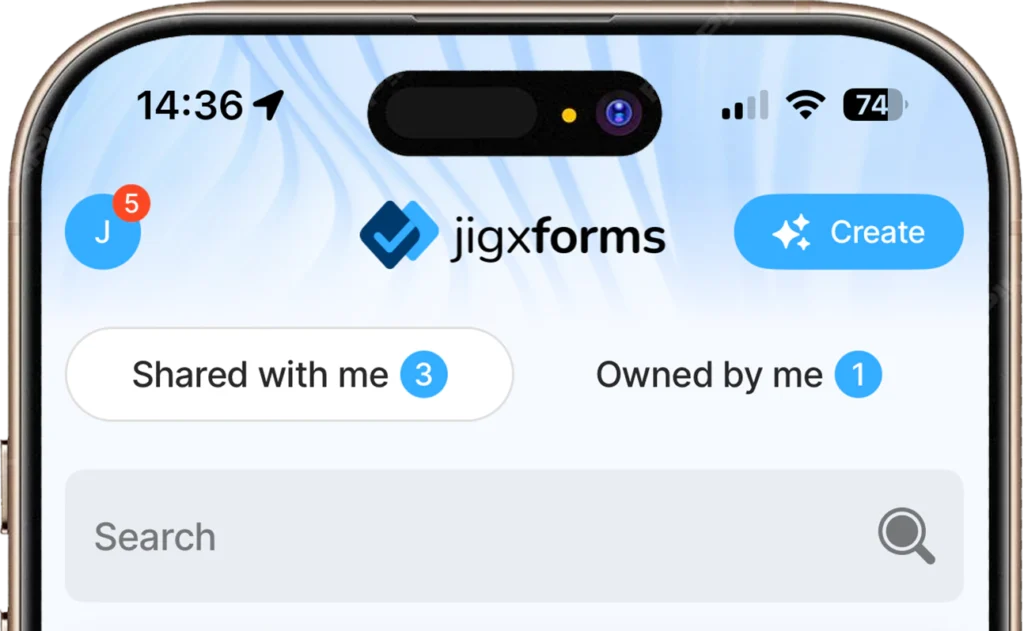
Create a form in the mobile app
To create a form in the JigxForms mobile app:
- Open the JigxForms mobile app on your device
- Tap create (blue button in the top right corner)
- Enter a prompt or upload a file/photo
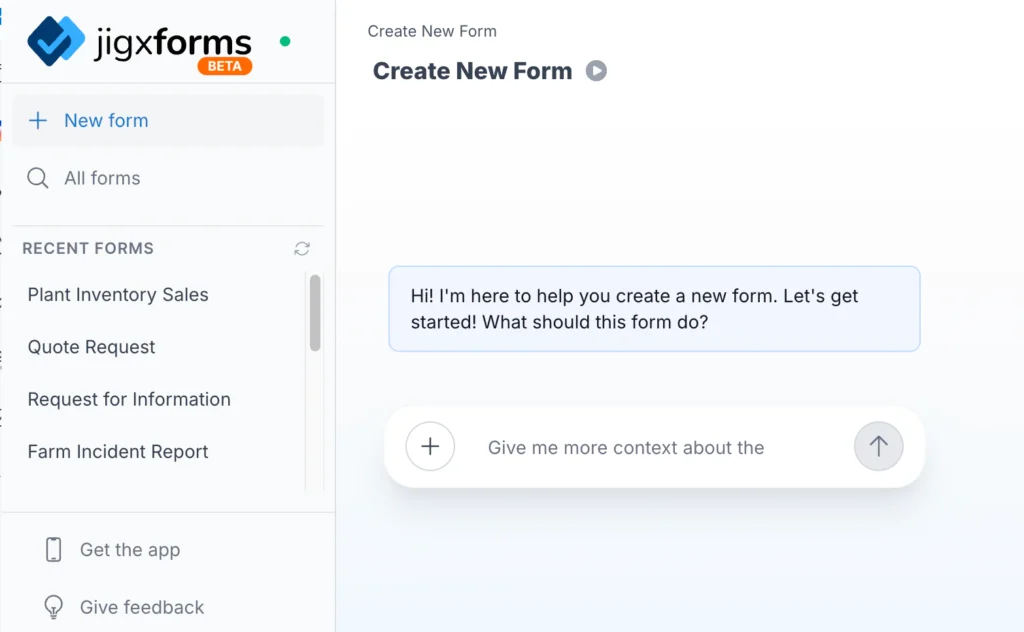
Create a form in your browser
To create a JigxForm via your browser:
- Go to https://forms.jigx.com
- Click +New form
- Enter a prompt or upload a file/photo
2. Copy and paste a prompt (the fastest way to get started)
Don’t overthink this, building your first form should be easy. To help you get started, try one of these prompts:
Safety inspection
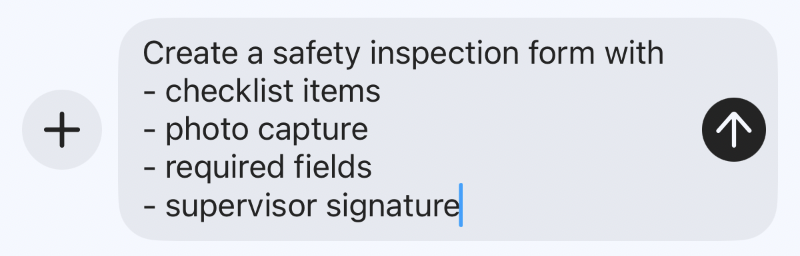
Create a safety inspection form with:
- checklist items
- photo capture
- required fields
- supervisor signature
Delivery confirmation
Create a delivery confirmation form with:
- customer name
- delivery items
- condition of goods (dropdown)
- photo upload
- signature
Service report
Create a service report with:
- customer details
- work completed
- parts used
- photos
- technician signature
These are based on real-world use cases like inspections, service logs, and site checklists.
3. Review → Build → Done
Once you enter your prompt:
- JigxForms generates a form plan first
- You’ll see:
- sections (i.e. details, checklist, sign-off)
- field types (text, dropdown, photo, signature)
- the structure of the form
What to do:
- Scan it quickly
- Ask for any changes (just tell it what to fix)
- Once you’re ready, click Accept & Build
Your first form is now ready.
4. Test It on Mobile
Open the JigxForms app and:
- Fill out your form
- Add photos
- Complete checklists
- Sign off
Pro tip: Always test your form before sharing it.
5. Share It With Your Team
From the browser, or on your mobile device:
- Find your form
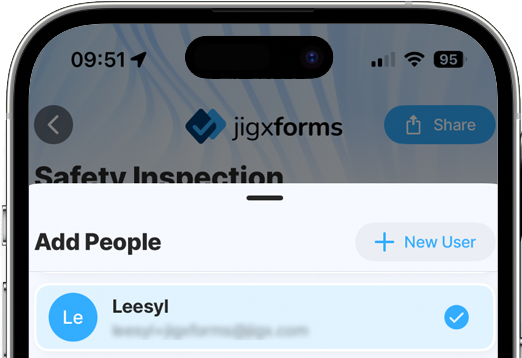
- Click Share
- Add people or email addresses
- Send
Your team can now:
- Access the form instantly
- Submit from mobile
- Work even when offline
6. What Should You Build Next?
Start with simple, high-impact forms:
- Safety inspections
- Service reports
- PPE compliance checklists
- Site inspections
- Customer feedback forms
Start simple → refine later.
7. Pro Tips (This Is Where You Level Up)
Want better forms instantly? Do this:
Be specific in your prompts
- Number of steps
- Required vs optional fields
- Field types (dropdown, photo, signature)
Choose the right flow
- Linear → simple forms
- Conditional → dynamic logic
- Conversational → mobile-friendly
- Multi-step → complex workflows
Iterate quickly
- You can update forms anytime
- In the app, simply use the Modify Form button
- In the browser, use the chat tab
- Prompt your changes and rebuild
8. Why Teams Use JigxForms
JigxForms is built for teams in the field:
- Works offline in low connectivity
- Captures structured data (not just PDFs)
- Syncs with systems like Acumatica
- Collects photos, signatures, and inputs in real time
9. What to Do Next
Now that you’ve created your first form:
- Create 2–3 more forms for real workflows
- Share them with your team
- Start collecting real data