If your field team is still using paper forms (or clunky digital ones), you can replace them in minutes with JigxForms.
This guide will show you exactly how to:
- Create your first form
- Test it on mobile
- Start collecting real data from the field
Need access to JigxForms? Click here to sign up now, no credit card required.
However you prefer to follow along, via the video or our written guide below it, you’ll leave this page knowing exactly how to build, share, and submit your first JigxForm!
https://www.youtube.com/watch?v=V3BciMQftdE&t=2s
1. Create your first form
With JigxForms, you create mobile-friendly forms in your browser. These forms can be accessed by anyone on your team from any mobile device, via our native JigxForms app for iOS or Android.
Create a form from your browser
To create a JigxForm via your browser:
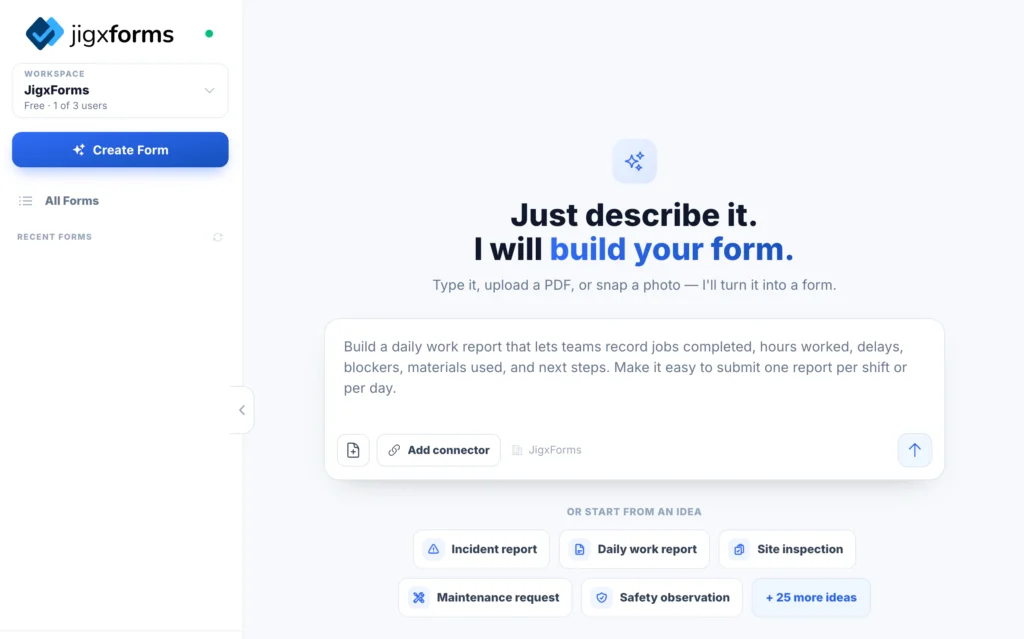
- Go to https://forms.jigx.com
- Click Create Form
- Here you can type out a prompt like, “build me a safety checklist for my HVAC business.” Or, you can upload a photo of an existing form.
2. Not sure where to start? Try an idea.
Don’t overthink this, building your first form should be easy. To help you get started, try one of the pre-built form ideas, like the Incident report:
Incident Report
Create an incident report form for employees to log workplace accidents, near misses, or safety events. Include people involved, location, incident type, description, evidence, and follow-up actions.
You can customize this prompt (or any other idea prompt) to better suit your specific needs.
Need other ideas? You could also try:
Delivery confirmation
Create a delivery confirmation form with:
- customer name
- delivery items
- condition of goods (dropdown)
- photo upload
- signature
Service report
Create a service report with:
- customer details
- work completed
- parts used
- photos
- technician signature
These are based on real-world use cases like inspections, service logs, and site checklists.
3. Review → Build → Done
Once you enter your prompt, JigxForms gets to work.
As JigxForms starts building your form, you’ll see live progress updates along the way.
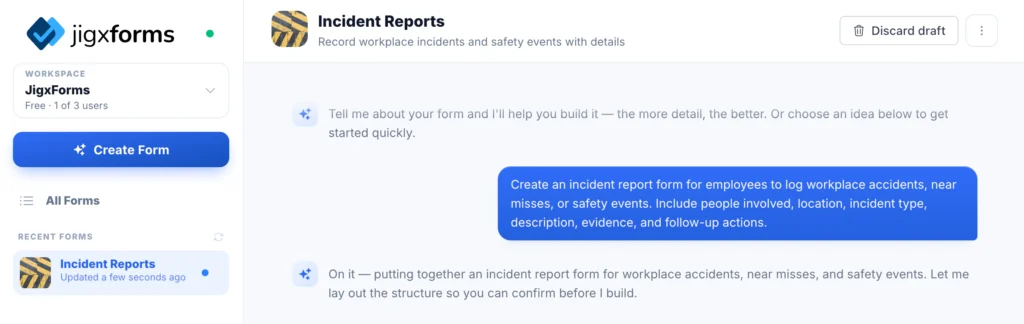
JigxForms will lay out:
- sections (i.e. details, checklist, sign-off)
- field types (text, dropdown, photo, signature)
- the structure of the form
Along the way, if the AI needs additional information from you, it may ask you clarifying questions.
Within moments, your first mobile-friendly form will be ready.
4. Test It on Mobile
Once generated, you can easily access the form from the JigxForms mobile app. The easiest way to do this is by scanning the QR code directly from your browser.
Once you’re logged into the JigxForms app you can:
- Fill out your form
- Add photos
- Complete checklists
- Sign off
Pro tip: Always test your form before sharing it.
5. Share It With Your Team
Sharing your first form is easy. Back in your browser, you’ll click on your form and then click on “Shared with.”
Fill out your colleague’s details, including their name, email, and role (Form creator or editor only) and hit “Share & Close.”
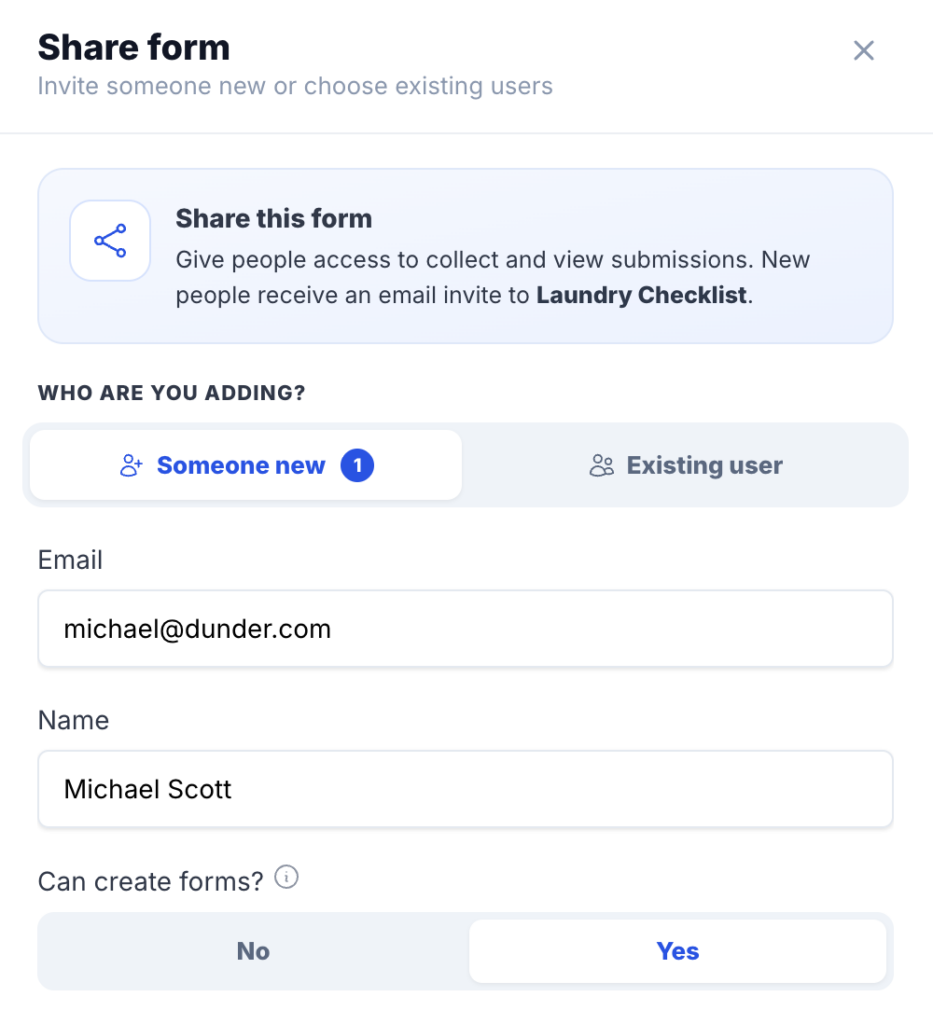
Share with one person or many. Once shared your team can:
- Access the form instantly
- Submit from mobile
- Work even when offline
6. What Should You Build Next?
Start with simple, high-impact forms:
- Safety inspections
- Service reports
- PPE compliance checklists
- Site inspections
- Customer feedback forms
Start simple → refine later.
7. Pro Tips (This Is Where You Level Up)
Want better forms instantly? Do this:
Be specific in your prompts
- Number of steps
- Required vs optional fields
- Field types (dropdown, photo, signature)
Add the small details
JigxForms’ AI can use the information you provide it to create hyper-specific forms catered to your business. If you’re a plumbing company servicing large commercial accounts, tell it. The more context you provide, the better forms JigxForms can create.
Iterate quickly
- You can update forms in your browser anytime. Updates you make will automatically be synced to the form across your team’s mobile devices.
- Prompt your changes and rebuild
8. Why Teams Use JigxForms
JigxForms is built for teams in the field:
- Works offline in low connectivity
- Captures structured data (not just PDFs)
- Syncs with other systems via our Connectors for popular software like Acumatica, HubSpot, NetSuite, Sage, ServiceTitan, Smartsheet and more
- Collects photos, signatures, and inputs in real time
9. What to Do Next
Now that you’ve created your first form:
- Create 2–3 more forms for real workflows
- Share them with your team
- Start collecting real data
10. Need help?
If you get stuck anywhere along the way, you can reach out to our team by clicking on “Get Support” from your profile in the browser.
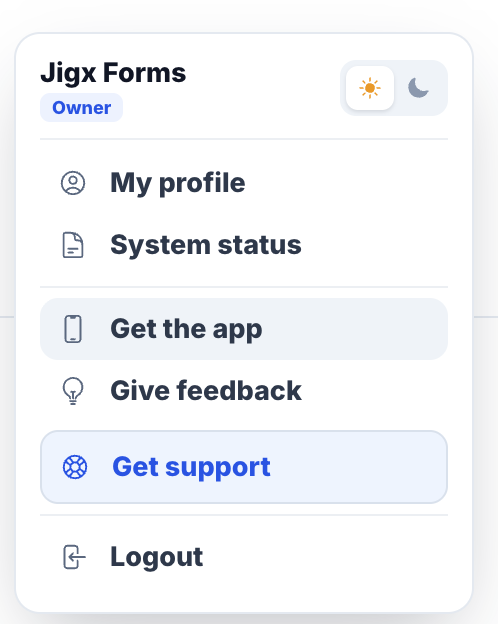
What will you build with JigxForms?
To get started, sign up for your free JigxForms account today.